How it works
From your idea to a live website, one click at a time.
This tour follows Ana, who runs a small bakery, from her first sign-in to her new website going live. Every screenshot is the real Spellship. No code, no servers to rent, no jargon: you describe what you want, check it, and publish it.
-
Request access
Spellship is invite-only. Press Request access on this site and tell us who you are and what you'd like to build. We create your account and send you a welcome email with the sign-in address; your temporary password arrives separately.
-
Sign in
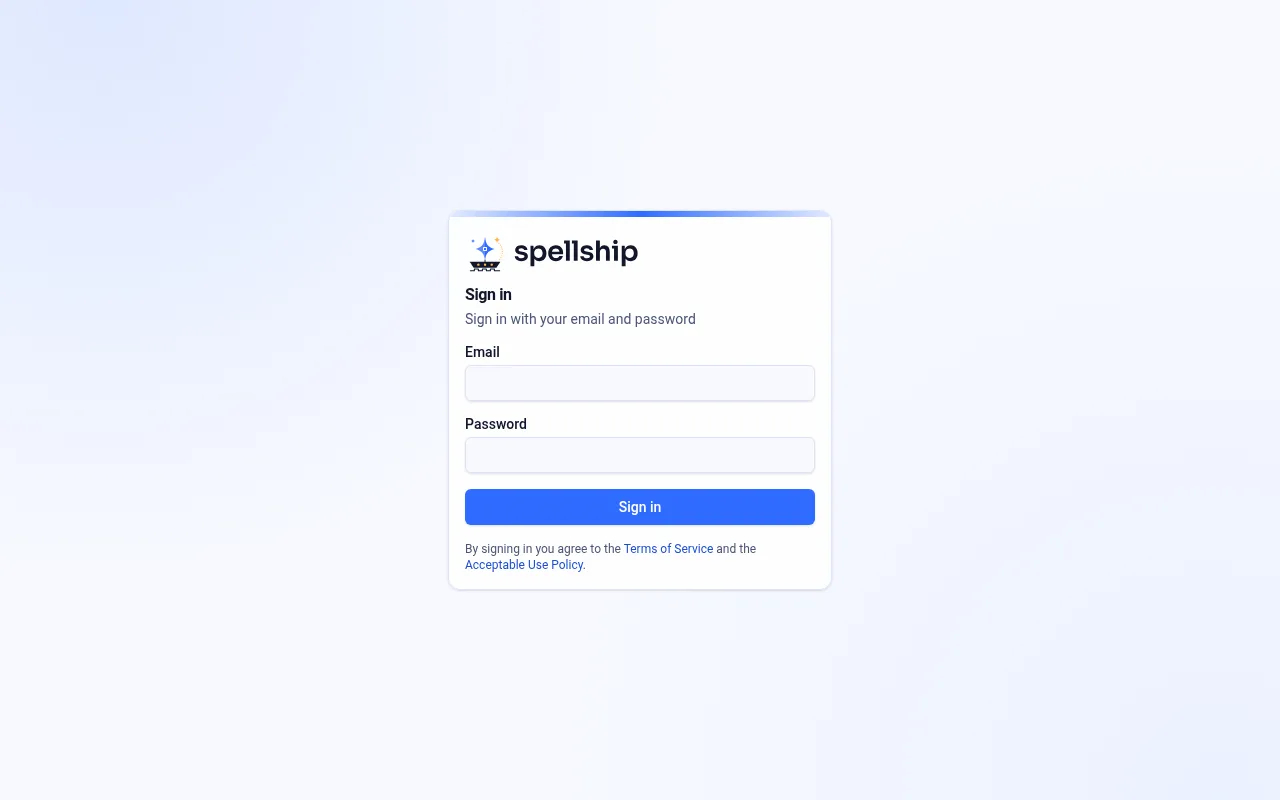
Open app.spellship.com and sign in with your email and the temporary password. Choose your own password right away under Account (see the last step).
-
Start a new project
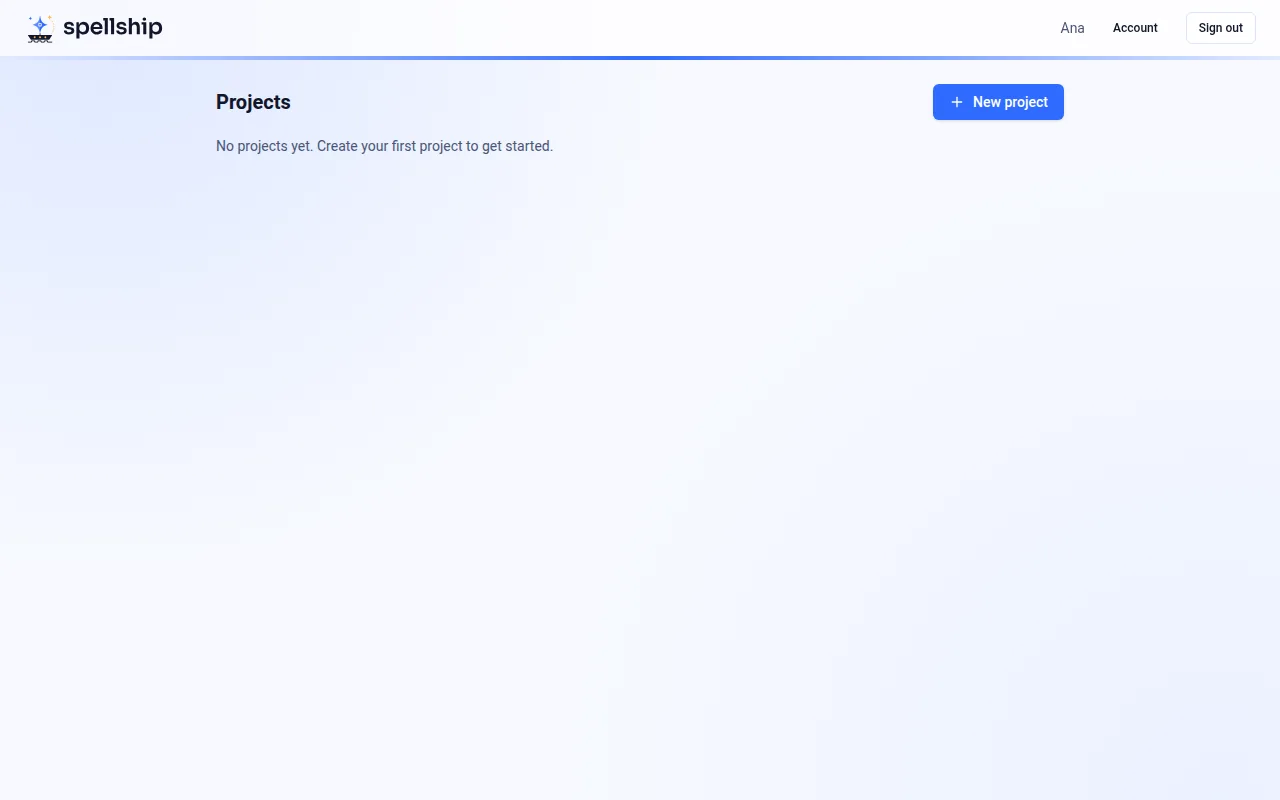
Your Projects page lists your websites. The first time it is empty: press New project.
-
Choose the kind of website, a name and an address
Pick the card that fits best: a Website (business, portfolio, blog, event…) or a Website with features (online shop, bookings, members, courses…). Type the project's name; Spellship suggests an address such as
anas-bakery.spellship.appand checks that it is free. You can edit it. Press Create project to start your 14-day free trial.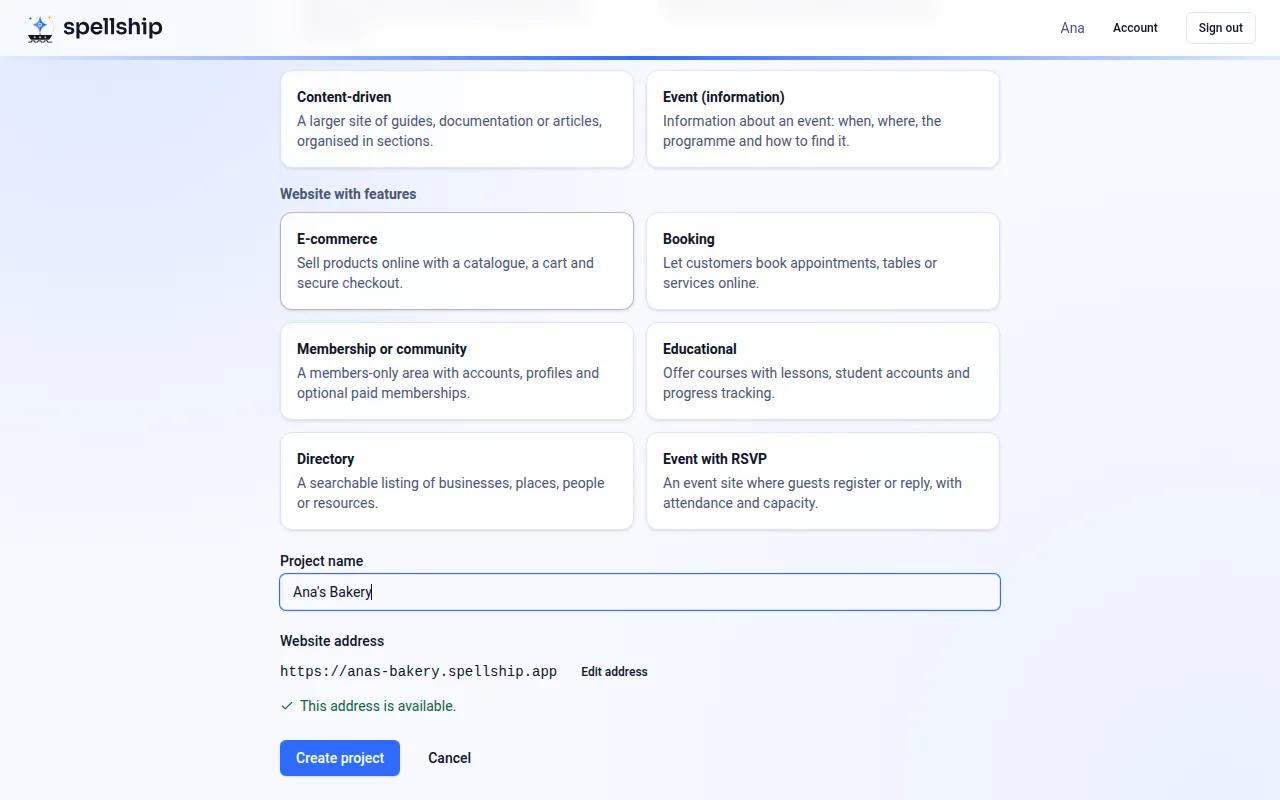
-
Watch Spellship set everything up
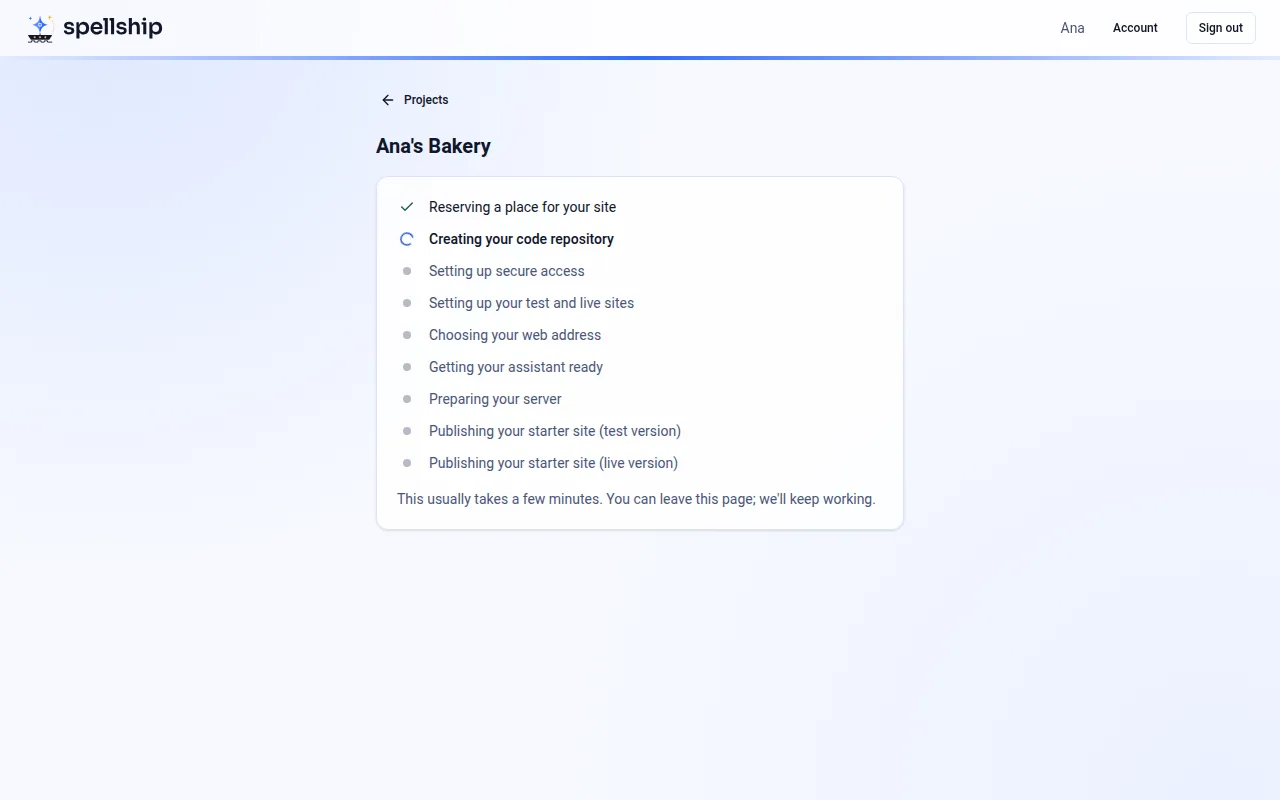
In a minute or two Spellship creates your code repository, prepares a server, sets up your web address with a security certificate and publishes a starter site. You can follow the progress or leave the page; it keeps going.
-
Meet your two sites: Beta and Production
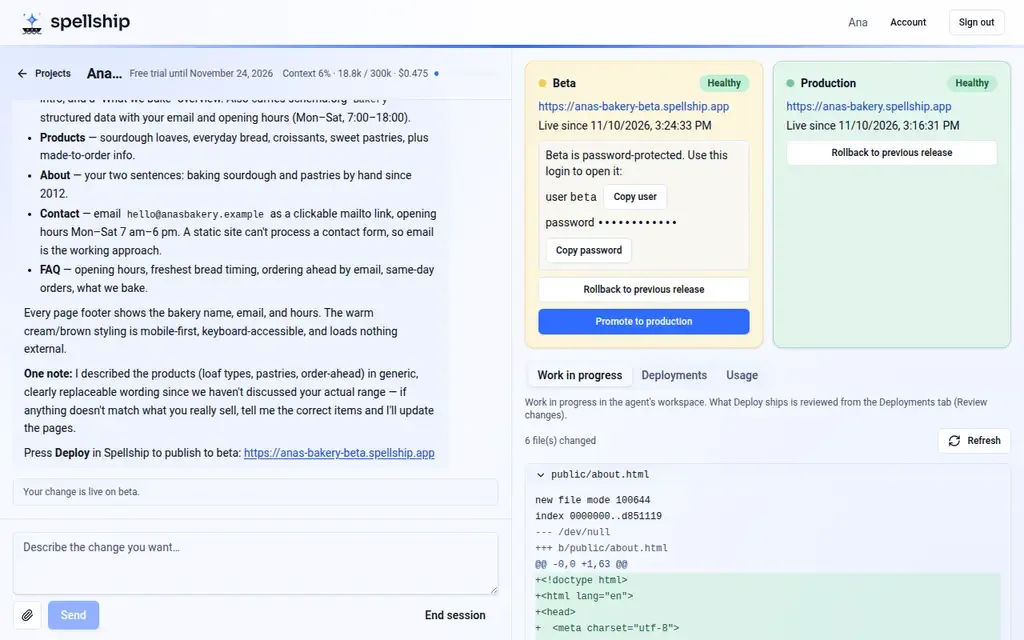
Every project has two copies of your website. Production is the real one your visitors see. Beta is your private test copy: every change goes there first, protected by the password shown on the Beta card, so only you (and whoever you share it with) can look. The buttons on the cards let you go back to a previous version at any time.
-
Describe what you want
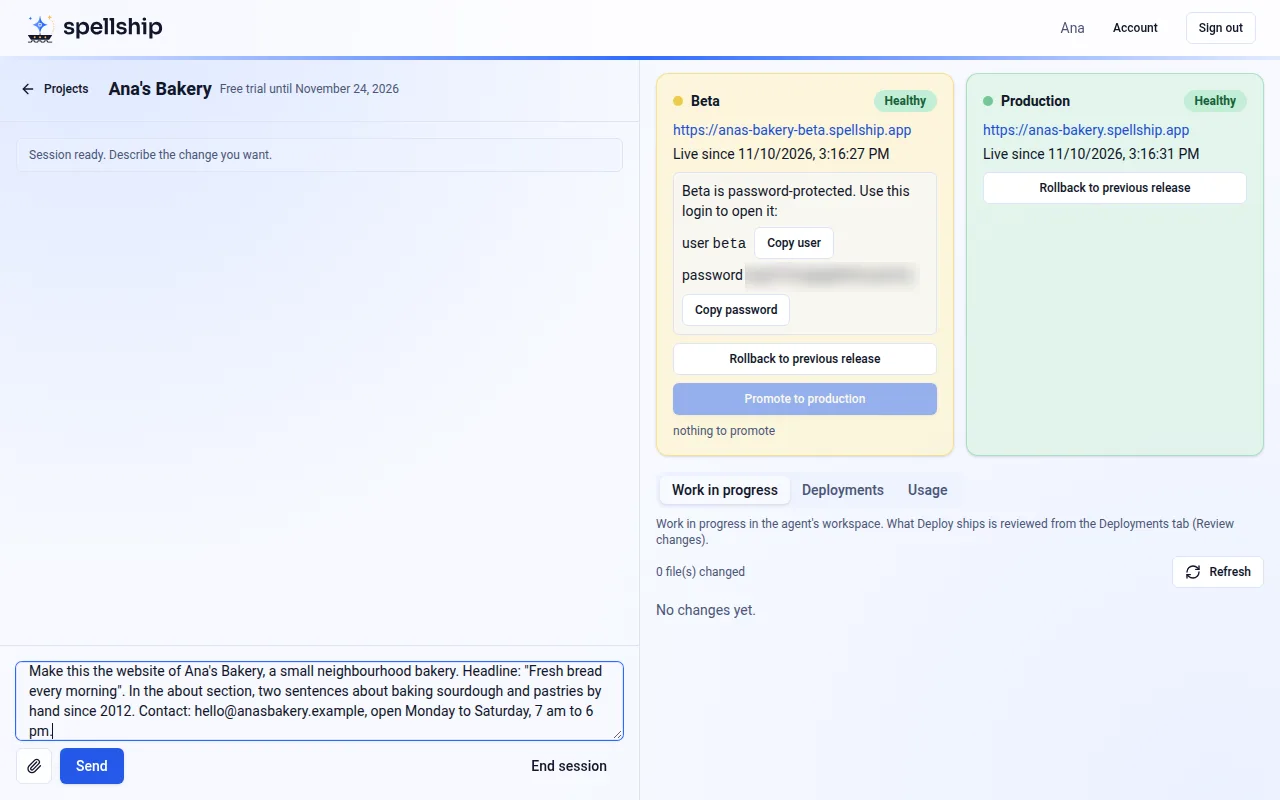
Press Start session, then write what you want in plain words in the box at the bottom, as you would to a web designer. Add screenshots or photos with the paperclip if it helps. Press Send.
-
Let the crew work
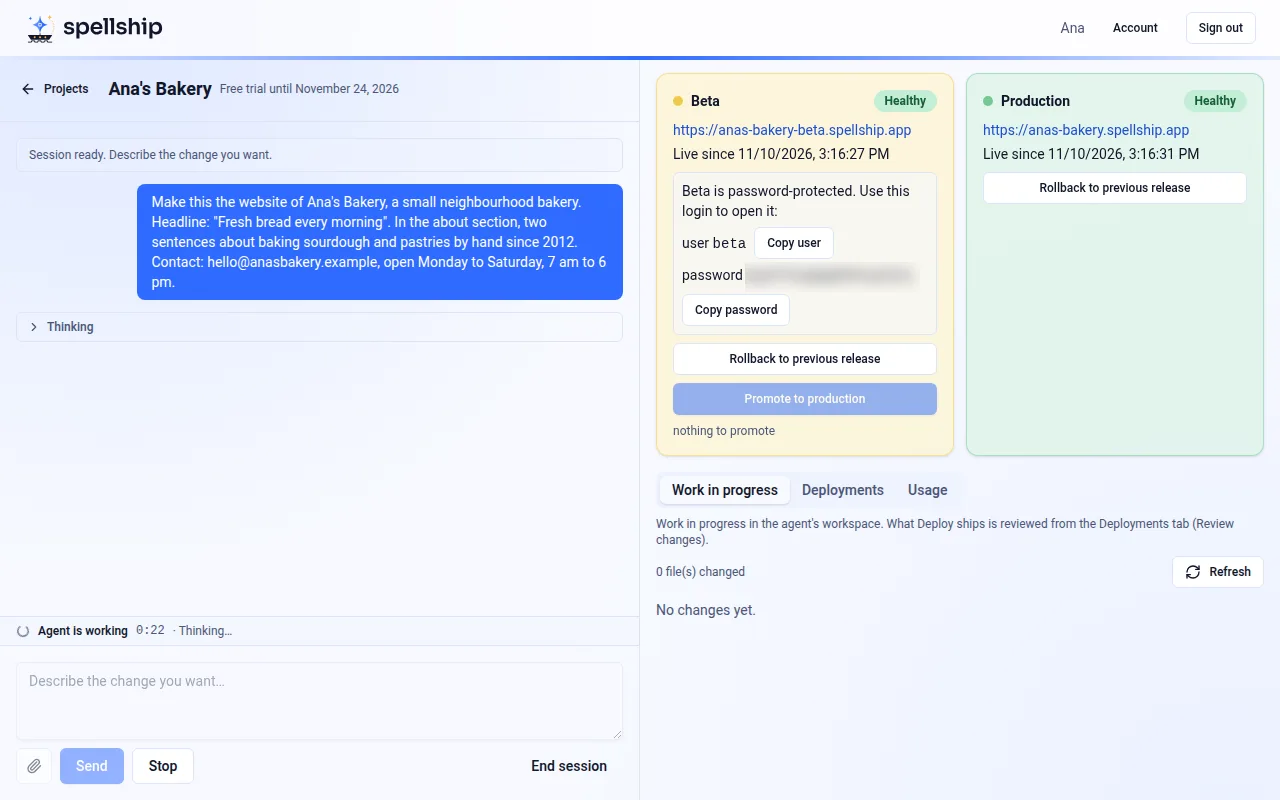
Spellship's AI crew plans the change, writes the code and tests it. You can watch what it does and send more details at any time. When it is ready, it explains in plain language what it changed and asks you to review it.
-
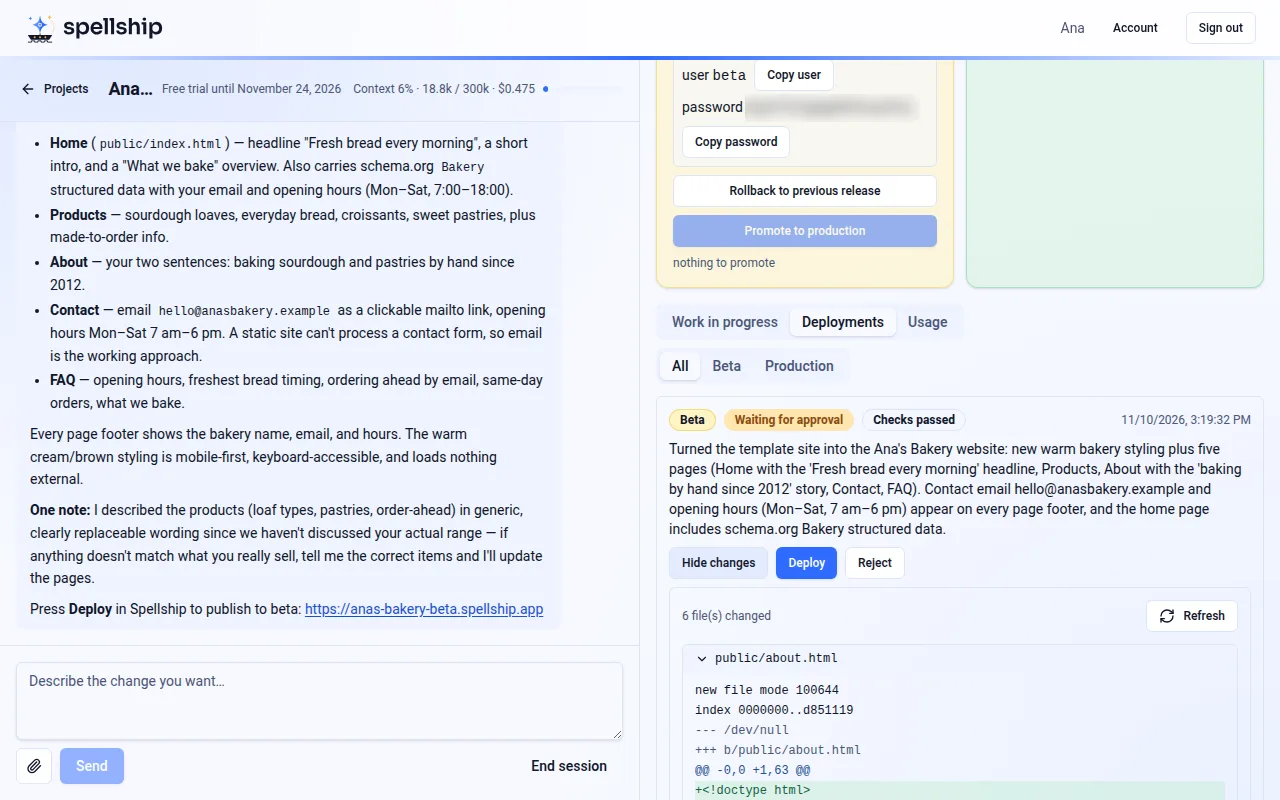
Review the change and press Deploy
Open the Deployments tab. The proposed change is listed with its description; press Review changes to see exactly what will change, then Deploy to put it on your Beta site. Not happy? Press Reject or just tell the crew what to change.
-
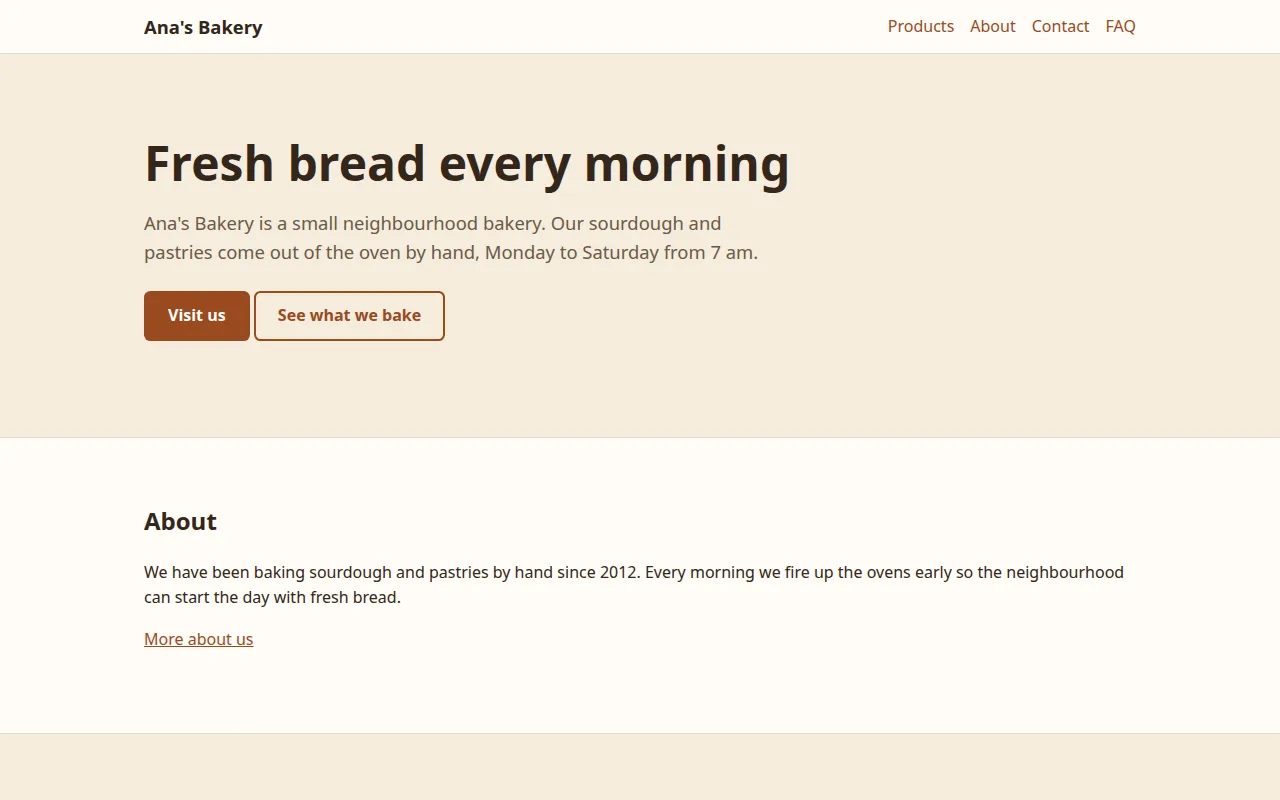
Check it on Beta
Open your Beta address (the link on the Beta card) and sign in with the Beta password. Click around, check it on your phone, show it to a colleague. Ask for more changes in the chat as many times as you like: each one goes to Beta first.
-
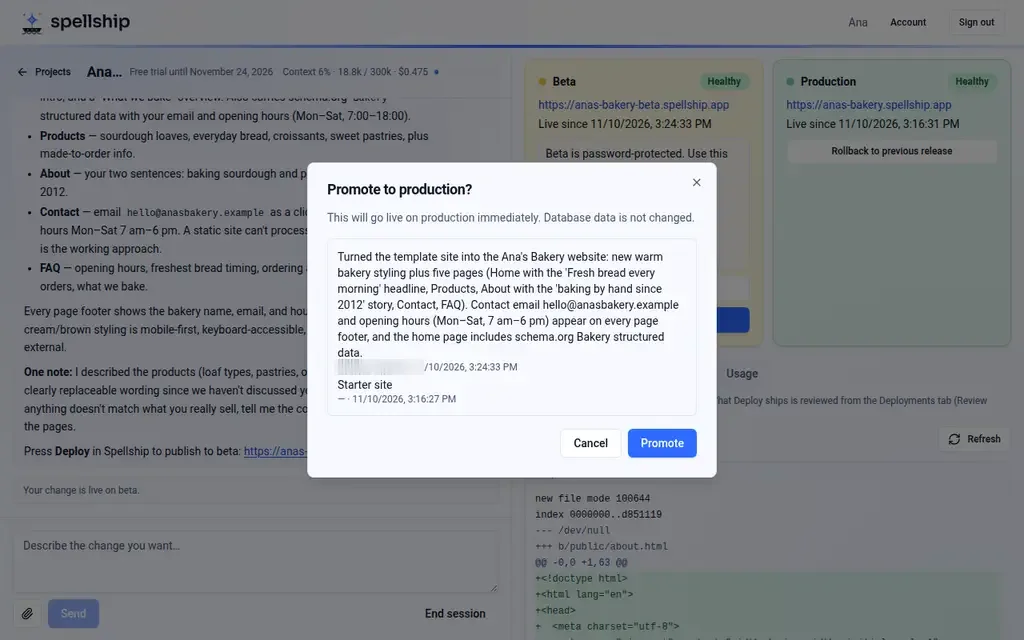
Publish it with Promote to production
When Beta looks right, press Promote to production on the Beta card. Spellship lists the changes that will go live; press Promote and your visitors see exactly what you checked on Beta. Your data is never touched by a release.
-
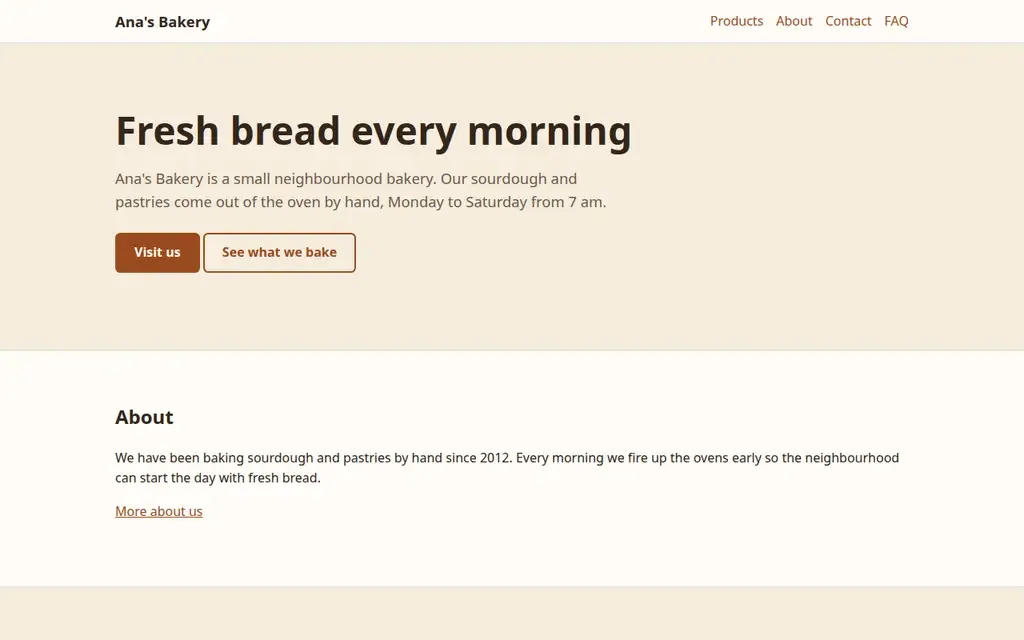
Your website is live
That's it: your site is live on its address, with a security certificate. If anything goes wrong, use Rollback to previous release on the card, or Restore this version in the Deployments tab, to go back in one click.
-
Keep your account safe
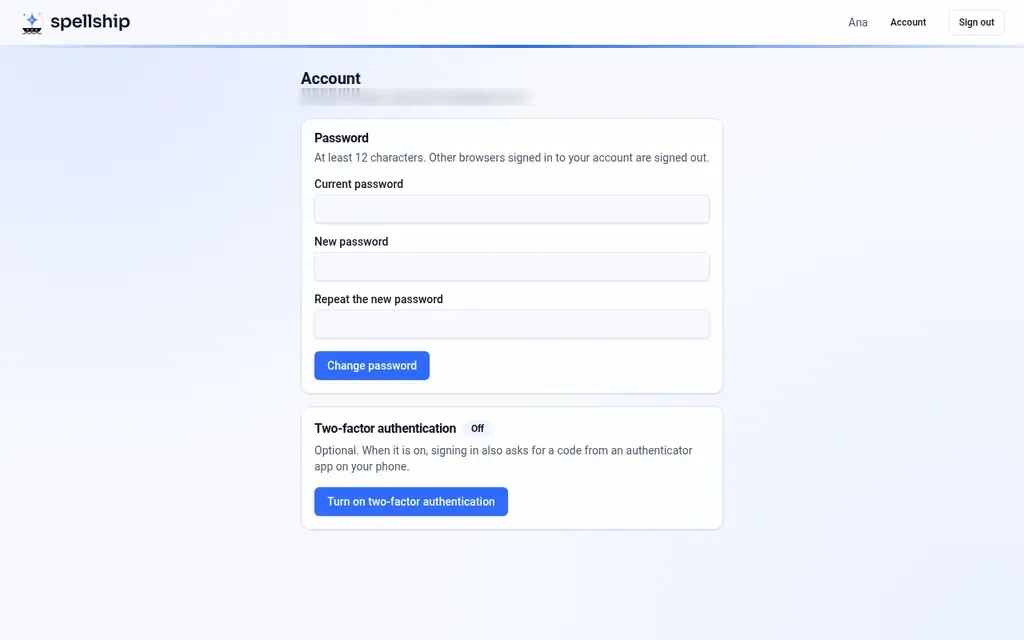
Under Account you change your password and can turn on two-factor authentication: signing in then also asks for a code from an app on your phone. Keep the backup codes it shows you somewhere safe.